Saturday, July 30, 2011

Confidential Folder Hider!!


Download the file attached here. When you’ll double click on the FolderLock.bat file for first time, a folder “Confidential” will be automatically created. You can move all your confidential data in that folder.

Now to lock the folder just double click on the file “Key”. You will get a confirmation message in Command Prompt. Type “y” to confirm. Now the folder “Confidential” will be locked and hidden.

If you want to access the contents of the folder then again double click on the batch file, you have created. Immediately you will be prompted to enter your password the default password is "default123". After that you can access the folder “Confidential”. If you want to change the password right click on the FolderLock.bat file n then find the text "default123" and change it to the password you want.
WORKS ON BOTH XP AND WINDOWS7.

Feel free to give your feedback at:
feedback@technoholics.co.in

Saturday, July 16, 2011

Adding Custom Folders To SendTo Menu


For XP: 
First you "_" need to view hidden files. So, make all hidden files visible, for this follow the following process;
My Computer =>Tool =>Folder Option =>View tab and select the,Show hidden files and folders.
Open ur drive where ur OS is installed "Drive:/documents and settings/(user name)/send to."
eg :- (in general case C is the drive where OS is installed)
C:/documents and settings/(username or administrator folder)/send to
Create a shortcut of the folder/s or drive/s u want in send to menu to the SEND TO FOLDER for this, copy the folder/s or drive/s u want, and go to SEND TO FOLDER and right click -> paste shortcut.


For Win7: 
To make hidden files visible, this follow the following process;
Start =>Control Panel =>Appearance and Personalization =>Folder Option =>Show hidden files and folders.
Open ur drive where ur OS is installed, "Drive:/Users/(username)/AppData/Roaming/Microsoft/Windows/SendTo"
Create a shortcut of the folder/s or drive/s u want in send to menu to the SEND TO FOLDER for this, copy the folder/s or drive/s u want,and go to SEND TO FOLDER and right click -> paste shortcut.


Feel free to give your feedback at:
feedback@technoholics.co.in


Friday, July 8, 2011

Hiding Your Files In A New Way!!


This is actually a trick to change the path of your folder using .bat file and not a  way to hide files and folder but it modifies the path of the folder in such a way that no-one can guess what’s inside it unless and until he knows the trick.
I have compiled all the coding into a small setup of four files which consist:
1) loc.bat
2) key.bat
3) ControlPannel
4) Folder Guard User’s Guide.
The information about hiding files is available inside the Users Guide. You can get it from the ControlPannel folder after installing it.
and download file named "Folder Guard(Rohan's Blog)"
Feel free to give your feedback at:
feedback@technoholics.co.in


Thursday, June 23, 2011

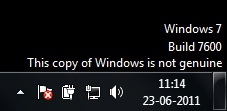
Remove 'NOT GENIUNE' watermark from your desktop manually!!!!!


This was posted on microsoft website by the Windows people itself.........
(many people in the US had geniune win OS but were getting this 'NOT GENIUNE' watermark on their desktop , so as a result of thier numerous complaints....we have this....)
It was posted for Win XP but will work for vista and win7 also

    win7(copy not genuine)
  1. Launch Windows Task Manager.
  2. End wgatray.exe process in Task Manager.
  3. Restart Windows XP in Safe Mode.
  4. Delete WgaTray.exe from C:\Windows\System32.
  5. Delete WgaTray.exe from C:\Windows\System32\dllcache.
  6. Launch RegEdit.
  7. Browse to the following location: HKEY_LOCAL_MACHINE\SOFTWARE\Microsoft\Windows NT\CurrentVersion\Winlogon\Notify
  8. Delete the folder WgaLogon and all its contents
  9. Reboot Windows XP.
But the latest version of the WGN tool is a little tricky to handle. It will pop up again as soon as you end it from the task manager and while it is running in the memory, you can’t delete it too.

Here is how I did it :
  • Ignore Step #2 of ending wgatray.exe before restarting to Safe Mode as it serves no purpose.
  • At Step #4, wait on the deletion confirmation dialog box and then open task manager to end wgatray.exe
  • When you are again prompted for a confirmation for terminating the process, align that confirmation box over the delete confirmation box.
  • Press Yes on the Task Manager prompt and then quickly press Yes on the deletion confirmation. (You need to repeat this if you miss it)
  • If you did it quickly then you will be able to delete the file.
  • Step #5 can be missed. I was able to do it without the Step #5.
  • Complete Step 6 to 9 as instructed
Feel free to give your feedback at:
feedback@technoholics.co.in


Thursday, June 2, 2011

TURN ON YOUR PC IN 10 SECONDS (for XP)

TURN ON YOUR PC JUST IN 10 SECONDS (MAY VARY FROM PC to PC)
Alright so you want to know how to turn your PC on in 10 seconds.
1)Click on the START button then press R it will take you to Run
2)Type Regedit in the box that appears (Run Menu), press enter.
this will open Registry Editor,

now look for the key:
HKEY_LOACAL_MACHINE\SYSTEM\CurrentControlSet\Control\Content Index
now there find the Key Called:
"Startup Delay"
Double Click On It
Now where its Base
Click Decimal
Now its Default Value Is 4800000 (75300:hexadecimal)
Change The Value To 40000


Here you go, you have done it. Now close the Registry Editor and
Restart Your Computer, and enjoy its speed.

Feel free to give your feedback at:
feedback@technoholics.co.in