Showing posts with label win7. Show all posts

Sunday, August 14, 2011

How to use Pendrive as Ram and increase PC speed

‎1. First Go To Control Panel from my computer or startup
2. Then click on System And Security and then System .
3. Now click on "Advance System Settings" at left side
4. Click on Settings and the go to Advanced Tab and then Settings > Advanced
5. Now, you can see Virtual Memory, just click on Change
6. Here you have to uncheck "Automatically manage paging file size"
7. Now, click on your pen drive, and set the custom size.
8. Ex. In 4 GB pen drive, 700 is initial size and 3000 is maximum size

Feel free to give your feedback at:
feedback@technoholics.co.in

Saturday, August 13, 2011

General Keyboard Shotcuts


  1. CTRL+C (Copy)
  2. CTRL+X (Cut)
  3. CTRL+V (Paste)
  4. CTRL+Z (Undo)
  5. DELETE (Delete)
  6. SHIFT+DELETE (Delete the selected item permanently without placing the item in the Recycle Bin)
  7. CTRL while dragging an item (Copy the selected item)
  8. CTRL+SHIFT while dragging an item (Create a shortcut to the selected item)
  9. F2 key (Rename the selected item)
  10. CTRL+RIGHT ARROW (Move the insertion point to the beginning of the next word)
  11. CTRL+LEFT ARROW (Move the insertion point to the beginning of the previous word)
  12. CTRL+DOWN ARROW (Move the insertion point to the beginning of the next paragraph)
  13. CTRL+UP ARROW (Move the insertion point to the beginning of the previous paragraph)
  14. CTRL+SHIFT with any of the arrow keys (Highlight a block of text)
  15. SHIFT with any of the arrow keys (Select more than one item in a window or on the desktop, or select text in a document)
  16. CTRL+A (Select all)
  17. F3 key (Search for a file or a folder)
  18. ALT+ENTER (View the properties for the selected item)
  19. ALT+F4 (Close the active item, or quit the active program)
  20. ALT+ENTER (Display the properties of the selected object)
  21. ALT+SPACEBAR (Open the shortcut menu for the active window)
  22. CTRL+F4 (Close the active document in programs that enable you to have multiple documents open simultaneously)
  23. ALT+TAB (Switch between the open items)
  24. ALT+ESC (Cycle through items in the order that they had been opened)
  25. F6 key (Cycle through the screen elements in a window or on the desktop)
  26. F4 key (Display the Address bar list in My Computer or Windows Explorer)
  27. SHIFT+F10 (Display the shortcut menu for the selected item)
  28. ALT+SPACEBAR (Display the System menu for the active window)
  29. CTRL+ESC (Display the Start menu)
  30. ALT+Underlined letter in a menu name (Display the corresponding menu)
  31. Underlined letter in a command name on an open menu (Perform the corresponding command)
  32. F10 key (Activate the menu bar in the active program)
  33. RIGHT ARROW (Open the next menu to the right, or open a submenu)
  34. LEFT ARROW (Open the next menu to the left, or close a submenu)
  35. F5 key (Update the active window)
  36. BACKSPACE (View the folder one level up in My Computer or Windows Explorer)
  37. ESC (Cancel the current task)
  38. SHIFT when you insert a CD-ROM into the CD-ROM drive (Prevent the CD-ROM from automatically playing)
  39. Dialog Box Keyboard Shortcuts
  40. CTRL+TAB (Move forward through the tabs)
  41. CTRL+SHIFT+TAB (Move backward through the tabs)
  42. TAB (Move forward through the options)
  43. SHIFT+TAB (Move backward through the options)
  44. ALT+Underlined letter (Perform the corresponding command or select the corresponding option)
  45. ENTER (Perform the command for the active option or button)
  46. SPACEBAR (Select or clear the check box if the active option is a check box)
  47. Arrow keys (Select a button if the active option is a group of option buttons)
  48. F1 key (Display Help)
  49. F4 key (Display the items in the active list)
  50. BACKSPACE (Open a folder one level up if a folder is selected in the Save As or Open dialog box)

    Microsoft Natural Keyboard Shortcuts
  51. Windows Logo (Display or hide the Start menu)
  52. Windows Logo+BREAK (Display the System Properties dialog box)
  53. Windows Logo+D (Display the desktop)
  54. Windows Logo+M (Minimize all of the windows)
  55. Windows Logo+SHIFT+M (Restore the minimized windows)
  56. Windows Logo+E (Open My Computer)
  57. Windows Logo+F (Search for a file or a folder)
  58. CTRL+Windows Logo+F (Search for computers)
  59. Windows Logo+F1 (Display Windows Help)
  60. Windows Logo+ L (Lock the keyboard)
  61. Windows Logo+R (Open the Run dialog box)
  62. Windows Logo+U (Open Utility Manager)

    Accessibility Keyboard Shortcuts
  63. Right SHIFT for eight seconds (Switch FilterKeys either on or off)
  64. Left ALT+left SHIFT+PRINT SCREEN (Switch High Contrast either on or off)
  65. Left ALT+left SHIFT+NUM LOCK (Switch the MouseKeys either on or off)
  66. SHIFT five times (Switch the StickyKeys either on or off)
  67. NUM LOCK for five seconds (Switch the ToggleKeys either on or off)
  68. Windows Logo +U (Open Utility Manager)

    Windows Explorer Keyboard Shortcuts
  69. END (Display the bottom of the active window)
  70. HOME (Display the top of the active window)
  71. NUM LOCK+Asterisk sign (*) (Display all of the subfolders that are under the selected folder)
  72. NUM LOCK+Plus sign (+) (Display the contents of the selected folder)
  73. NUM LOCK+Minus sign (-) (Collapse the selected folder)
  74. LEFT ARROW (Collapse the current selection if it is expanded, or select the parent folder)
  75. RIGHT ARROW (Display the current selection if it is collapsed, or select the first subfolder)

    Shortcut Keys for Character Map, After you double-click a character on the grid of characters, you can move through the grid by using the keyboard shortcuts
  76. RIGHT ARROW (Move to the right or to the beginning of the next line)
  77. LEFT ARROW (Move to the left or to the end of the previous line)
  78. UP ARROW (Move up one row)
  79. DOWN ARROW (Move down one row)
  80. PAGE UP (Move up one screen at a time)
  81. PAGE DOWN (Move down one screen at a time)
  82. HOME (Move to the beginning of the line)
  83. END (Move to the end of the line)
  84. CTRL+HOME (Move to the first character)
  85. CTRL+END (Move to the last character)
  86. SPACEBAR (Switch between Enlarged and Normal mode when a character is selected)

    Microsoft Management Console (MMC) Main Window Keyboard Shortcuts
  87. CTRL+O (Open a saved console)
  88. CTRL+N (Open a new console)
  89. CTRL+S (Save the open console)
  90. CTRL+M (Add or remove a console item)
  91. CTRL+W (Open a new window)
  92. F5 key (Update the content of all console windows)
  93. ALT+SPACEBAR (Display the MMC window menu)
  94. ALT+F4 (Close the console)
  95. ALT+A (Display the Action menu)
  96. ALT+V (Display the View menu)
  97. ALT+F (Display the File menu)
  98. ALT+O (Display the Favorites menu)

    MMC Console Window Keyboard Shortcuts
  99. CTRL+P (Print the current page or active pane)
  100. ALT+Minus sign (-) (Display the window menu for the active console window)
  101. SHIFT+F10 (Display the Action shortcut menu for the selected item)
  102. F1 key (Open the Help topic, if any, for the selected item)
  103. F5 key (Update the content of all console windows)
  104. CTRL+F10 (Maximize the active console window)
  105. CTRL+F5 (Restore the active console window)
  106. ALT+ENTER (Display the Properties dialog box, if any, for the selected item)
  107. F2 key (Rename the selected item)
  108. CTRL+F4 (Close the active console window. When a console has only one console window, this shortcut closes the console)

    Remote Desktop Connection Navigation
  109. CTRL+ALT+END (Open the Microsoft Windows NT Security dialog box)
  110. ALT+PAGE UP (Switch between programs from left to right)
  111. ALT+PAGE DOWN (Switch between programs from right to left)
  112. ALT+INSERT (Cycle through the programs in most recently used order)
  113. ALT+HOME (Display the Start menu)
  114. CTRL+ALT+BREAK (Switch the client computer between a window and a full screen)
  115. ALT+DELETE (Display the Windows menu)
  116. CTRL+ALT+Minus sign (-) (Place a snapshot of the active window in the client on the Terminal server clipboard and provide the same functionality as pressing PRINT SCREEN on a local computer.)
  117. CTRL+ALT+Plus sign (+) (Place a snapshot of the entire client window area on the Terminal server clipboard and provide the same functionality as pressing ALT+PRINT SCREEN on a local computer.)

    Microsoft Internet Explorer Navigation
  118. CTRL+B (Open the Organize Favorites dialog box)
  119. CTRL+E (Open the Search bar)
  120. CTRL+F (Start the Find utility)
  121. CTRL+H (Open the History bar)
  122. CTRL+I (Open the Favorites bar)
  123. CTRL+N (Start another instance of the browser with the same Web address)
  124. CTRL+O (Open the Open dialog box, the same as CTRL+L)
  125. CTRL+P (Open the Print dialog box)
  126. CTRL+R (Update the current Web page)
  127. CTRL+W (Close the current window)

    Feel free to give your feedback at:
    feedback@technoholics.co.in

Saturday, July 30, 2011

Confidential Folder Hider!!


Download the file attached here. When you’ll double click on the FolderLock.bat file for first time, a folder “Confidential” will be automatically created. You can move all your confidential data in that folder.

Now to lock the folder just double click on the file “Key”. You will get a confirmation message in Command Prompt. Type “y” to confirm. Now the folder “Confidential” will be locked and hidden.

If you want to access the contents of the folder then again double click on the batch file, you have created. Immediately you will be prompted to enter your password the default password is "default123". After that you can access the folder “Confidential”. If you want to change the password right click on the FolderLock.bat file n then find the text "default123" and change it to the password you want.
WORKS ON BOTH XP AND WINDOWS7.

Feel free to give your feedback at:
feedback@technoholics.co.in

Saturday, July 16, 2011

Adding Custom Folders To SendTo Menu


For XP: 
First you "_" need to view hidden files. So, make all hidden files visible, for this follow the following process;
My Computer =>Tool =>Folder Option =>View tab and select the,Show hidden files and folders.
Open ur drive where ur OS is installed "Drive:/documents and settings/(user name)/send to."
eg :- (in general case C is the drive where OS is installed)
C:/documents and settings/(username or administrator folder)/send to
Create a shortcut of the folder/s or drive/s u want in send to menu to the SEND TO FOLDER for this, copy the folder/s or drive/s u want, and go to SEND TO FOLDER and right click -> paste shortcut.


For Win7: 
To make hidden files visible, this follow the following process;
Start =>Control Panel =>Appearance and Personalization =>Folder Option =>Show hidden files and folders.
Open ur drive where ur OS is installed, "Drive:/Users/(username)/AppData/Roaming/Microsoft/Windows/SendTo"
Create a shortcut of the folder/s or drive/s u want in send to menu to the SEND TO FOLDER for this, copy the folder/s or drive/s u want,and go to SEND TO FOLDER and right click -> paste shortcut.


Feel free to give your feedback at:
feedback@technoholics.co.in


Friday, July 8, 2011

Hiding Your Files In A New Way!!


This is actually a trick to change the path of your folder using .bat file and not a  way to hide files and folder but it modifies the path of the folder in such a way that no-one can guess what’s inside it unless and until he knows the trick.
I have compiled all the coding into a small setup of four files which consist:
1) loc.bat
2) key.bat
3) ControlPannel
4) Folder Guard User’s Guide.
The information about hiding files is available inside the Users Guide. You can get it from the ControlPannel folder after installing it.
and download file named "Folder Guard(Rohan's Blog)"
Feel free to give your feedback at:
feedback@technoholics.co.in


Thursday, June 23, 2011

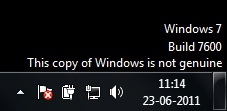
Remove 'NOT GENIUNE' watermark from your desktop manually!!!!!


This was posted on microsoft website by the Windows people itself.........
(many people in the US had geniune win OS but were getting this 'NOT GENIUNE' watermark on their desktop , so as a result of thier numerous complaints....we have this....)
It was posted for Win XP but will work for vista and win7 also

    win7(copy not genuine)
  1. Launch Windows Task Manager.
  2. End wgatray.exe process in Task Manager.
  3. Restart Windows XP in Safe Mode.
  4. Delete WgaTray.exe from C:\Windows\System32.
  5. Delete WgaTray.exe from C:\Windows\System32\dllcache.
  6. Launch RegEdit.
  7. Browse to the following location: HKEY_LOCAL_MACHINE\SOFTWARE\Microsoft\Windows NT\CurrentVersion\Winlogon\Notify
  8. Delete the folder WgaLogon and all its contents
  9. Reboot Windows XP.
But the latest version of the WGN tool is a little tricky to handle. It will pop up again as soon as you end it from the task manager and while it is running in the memory, you can’t delete it too.

Here is how I did it :
  • Ignore Step #2 of ending wgatray.exe before restarting to Safe Mode as it serves no purpose.
  • At Step #4, wait on the deletion confirmation dialog box and then open task manager to end wgatray.exe
  • When you are again prompted for a confirmation for terminating the process, align that confirmation box over the delete confirmation box.
  • Press Yes on the Task Manager prompt and then quickly press Yes on the deletion confirmation. (You need to repeat this if you miss it)
  • If you did it quickly then you will be able to delete the file.
  • Step #5 can be missed. I was able to do it without the Step #5.
  • Complete Step 6 to 9 as instructed
Feel free to give your feedback at:
feedback@technoholics.co.in


Sunday, December 26, 2010

How to Use Windows 7 Without Activation!!

Windows 7Most of you might be aware of the fact that it is possible to use Windows 7 and Vista for 120 days without activation. This is actually possible using the slmgr -rearm command which will extend the grace period from 30 days to 120 days. However in this post I will show you a small trick using which it is possible to use Windows 7 without activation for approximately an year! Here is a way to do that.

1. Goto “Start Menu -> All Programs -> Accessories” . Right click on “Command Prompt” and select “Run as Administrator“. If you are not the administrator then you are prompted to enter the password, or else you can proceed to step-2.

2. Now type the following command and hit enter
slmgr -rearm

3. You will be prompted to restart the computer. Once restarted the trial period will be once again reset to 30 days. You can use the above command for up to 3 times by which you can extend the trial period to 120 days without activation.

4. Now comes the actual trick by which you can extend the trial period for another 240 days. Open Registry Editor (type regedit in “Run” and hit Enter) and navigate to the following location
HKEY_LOCAL_MACHINE\SOFTWARE\Microsoft\Windows NT\CurrentVersion\SoftwareProtectionPlatform

5. In right-side pane, change value of SkipRearm to 1.

6. Now you will be able to use the slmgr -rearm command for another 8 times so that you can skip activation process for another 240 days. So you will get 120 + 240 = 360 days of free Windows 7 usage.
120 days using “slmgr -rearm” command before registry edit

+

240 days using “slmgr -rearm” command after registry edit

= 360 Days
Feel free to give your feedback at:
feedback@technoholics.co.in